
My definition of a good browser is: A browser that works well for me.Man is a funny creature. At times he loves change, be it for better or for worse. However, a wise man is one who does not change things too often.
After about 5 years of using Mozilla Firefox I decided to check out other browsers. Firefox was too good and therefore there wasn't any need to use another browser. That's quite a compliment for Firefox.
Changing My Browser
Lately, my Firefox browser had been getting very sluggish. I tried to disable all the add-ons, but it did not solve the problem. A friend told me that Google Chrome 3 enables fast browsing, and so I decided to try it. Alas, my experience with Google Chrome wasn't very positive. However, it was a good endeavor, since my quest for a quicker browser made me check out some other browsers such as Opera, SlimBrowser and Safari.
I finally settled down for Safari 4 (at least for the moment), after test driving the others. Why Safari? I'll discuss this a little later.

Every browser is better than the other just by a margin of a few milliseconds.
If you ever want to choose a browser, here are some things you must keep in mind:
Don't Use Technical Benchmarks but Judge by Your Preferences
In order to test various browsers, I did not use the technical benchmarks such as cold starting and warm starting time, RSS rendering, multiple image loading, etc. Every browser is better than the other just by a margin of a few milliseconds. A few milliseconds more or less do not make much of a difference to me.Silly as it may sound, I was getting bugged by the slow startup and the sluggish scrolling of Firefox. So I decided to try something new. I did not go by what the developers or reviewers said. I chose Safari because it felt right. I was looking for a browser that makes life easier, and I found everything (almost) I needed in Safari.
Browsing speed does not entirely depend on your browser. It depends on various other factors such as the host of the website you are opening, the content of the web page you are loading, your system configuration and your browser configuration. Every browser claims to be the fastest. However, just getting a "fast browser" may not be the solution.
Don't Leave Security up to Your Browser
It is foolishness to shop your heart out and then expect your browser to protect your credit card number. Security was not a big concern for me since I keep my online transactions to a minimum. Furthermore, every browser developer tries to provide maximum security possible. However, there are many smart hackers out there. So rather than relying on your browser, take precaution and don't flash your credit card too often.
The Best Browser in the Market May Not Be the Best Browser for You
Every browser claims to be the best. My definition of a good browser is: A browser that works well for me. All the other technicalities and features do not primarily matter. So if you want to choose a good browser, don't go after the hype. Check it out yourself, because the browsers that were touted as the best in the market may not work best for you or your computer system.

Now here are some reasons why some popular browsers did not work for me:
Why Google Chrome 3 did not work for me
...the final straw came when it crashed and gave me a bX-59cppw error
Now here are some reasons why some popular browsers did not work for me:
Why Google Chrome 3 did not work for me
Why Opera 10 did not work for me
Opera 10 had a few bugs and did not comply with certain JavaScript scripts. Even the drop down menus on certain sites did not work. Furthermore, I saw a furor over this issue on the internet. That's it. That was enough reason for me to uninstall Opera.
In Opera, I loved the quick dial page and the thumbnails shown while cycling between tabs. The feature in Opera that I loved the most is the Progress Bar. As seen below, my blog took 7 seconds to load at the speed of 6.3 Kbps. Also, out of the 45 elements, the 44th element (the Social Vibe gadget) is slowing the loading time of my blog.
Cool feature, isn't it? However, it did not keep me from uninstalling Opera.

Why Safari 4 Worked for Me
Safari is as smooth as silk. Everything from the startup to the cycling of tabs to the scrolling is perfect. Everything from the fonts to the drop down menus to the dialogue boxes is quite stylish. The best thing was that it was not sluggish, and never crashed.
I loved the Top Sites page which is similar to the Speed Dial page in Opera. The difference is that it can display 12 of your favorite sites in an attractive manner as compared to 9 sites in Opera. Furthermore, everything on the Top Sites page is animated and has a Vista-like zoom and transparency.
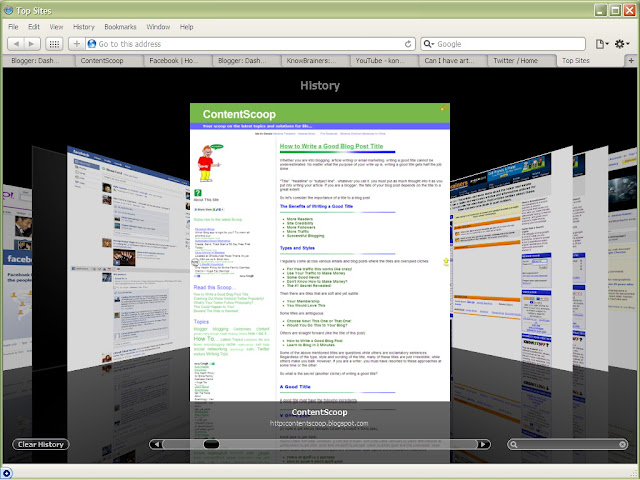
Below is a screenshot of the cover-flow effect of the browser History.
Safari Limitations
Once you close Safari, you lose all your tabs (or sites). When you restart it, you cannot find the tabs you last opened. You can only find these sites in the browser History. I found this quite frustrating. Also, you cannot reopen a tab you have accidentally closed. You've got to go to the browser History and find it. Apart from all these limitations, I found the sailing to be indescribably smooth with Safari. So I'm sticking to Safari for a while.
So, which one is the best browser? After all my research, I have found no browser to be perfect. Every browser has its own strengths and limitations.


